
Run the workboard in Tasks
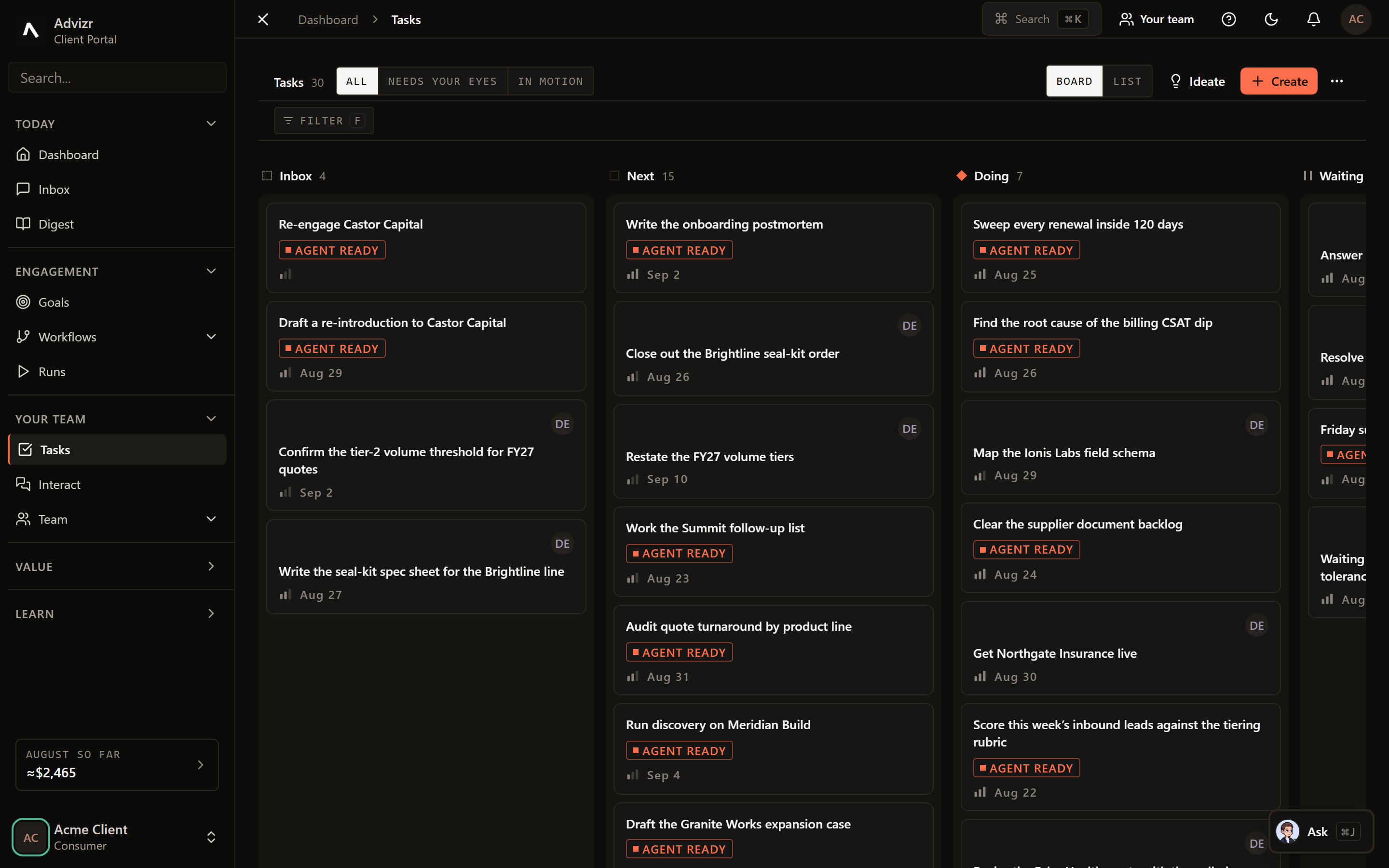
Tasks is the shared workboard. People and AI coworkers appear on the same board, holding the same kind of card, which is the point: the work is one queue, not a human queue and a robot queue that someone has to reconcile.
Views and grouping#
The board can be read as a Board or a List, and grouped by stage, owner, priority or due date. Grouping by owner is the fastest way to see what your AI coworkers are carrying versus what your people are carrying.
The states worth knowing#
- Agent-ready. Tagged as work an AI coworker can take. If nothing is agent-ready, your team has nothing to pick up, which is usually why a board looks busy while the workspace looks idle.
- Waiting on approval. The card is blocked on a decision in Inbox. The board shows this rather than letting the card look stalled for no reason.
- In progress by a coworker. Live work, traceable to a run.
The board opens on the default grouping.
This splits the board into who is actually carrying what.
Anything well-specified enough for a coworker to take can be tagged. Vague cards are the ones to leave with a person.
A card opens to its detail, including the runs that have worked on it.
A card that keeps bouncing back from a coworker is usually under-specified rather than too hard. Adding the missing constraint to the card fixes it more often than reassigning it to a person.
Bulk changes#
Selecting multiple cards opens a bulk bar for stage, owner and priority. Useful after a planning session, when a batch of cards needs the same move.
If something goes wrong#
- A card sits agent-ready and nothing picks it up. Check whether your team is paused, and check Inbox for a blocking approval.
- A coworker took a card and produced the wrong thing. Give feedback on the run, not the card. See Runs.
- Cards you did not create keep appearing. Workflows create cards when their output needs a human. That is intended.