
Understand roles and permissions
Every person on the platform is assigned one role, and that role determines what they can see and do. There are four roles in total — one for the Advizr team and three for client users. If you’re a Client Admin, you assign and change roles from Team management.
The four roles#
Admin#
The Admin role is reserved for Advizr internal staff. Admins have full access to all client workspaces and are responsible for building workflows, managing proposals, and supporting your engagement. You will never assign this role — it’s used by your FDE and other Advizr team members.
You never need to create or manage Admin accounts. These are managed internally by the Advizr team.
Client Admin#
This is your organization’s primary role. Client Admins have full access to everything in their workspace:
- View and interact with all dashboard sections
- Create and edit goals and objectives
- Upload and manage documents
- Approve or request changes to proposals
- Invite and remove team members
- Manage billing and organization settings
- Configure notification preferences
Most organizations have one or two Client Admins — typically the business owner or primary decision-maker.
Client Viewer#
Client Viewers have read-only access. They can see everything in the dashboard but cannot make changes:
- View the Dashboard, goals, and sources
- Read chat history (but not start new threads)
- Access learning content and track their own progress
- View analytics and run history
Client Viewer is a good fit for team members who need visibility into the engagement without editing rights.
Client Consumer#
Client Consumer is a simplified experience designed for broader team access. The rail is reduced, focused on asking your team for things:
- Ask their team for work in Interact, their primary interaction point
- View relevant dashboard content
- Access learning content
- Book calls with the Advizr team
Client Consumer is ideal for team members who want to use the AI tools without managing the full platform.
Why the platform uses role-based access
The platform uses role-based access control (RBAC): permissions are attached to roles, not to individual people. This keeps access predictable — when someone joins or changes responsibilities, you change one role assignment instead of managing dozens of individual permissions. It also limits exposure: each person sees only what their work requires.
Permissions comparison#
| Capability | Client Admin | Client Viewer | Client Consumer |
|---|---|---|---|
| View dashboard and Home | |||
| Use Interact | Read only | ||
| Create and edit goals | |||
| Upload documents | |||
| Approve proposals | |||
| Comment on proposals | |||
| Manage team members | |||
| Manage billing | |||
| Access learning content | |||
| Book calls | |||
| View analytics | |||
| Configure settings |
Change a team member’s role#
Only Client Admins can change roles. Team management is reached from Settings rather than the rail.
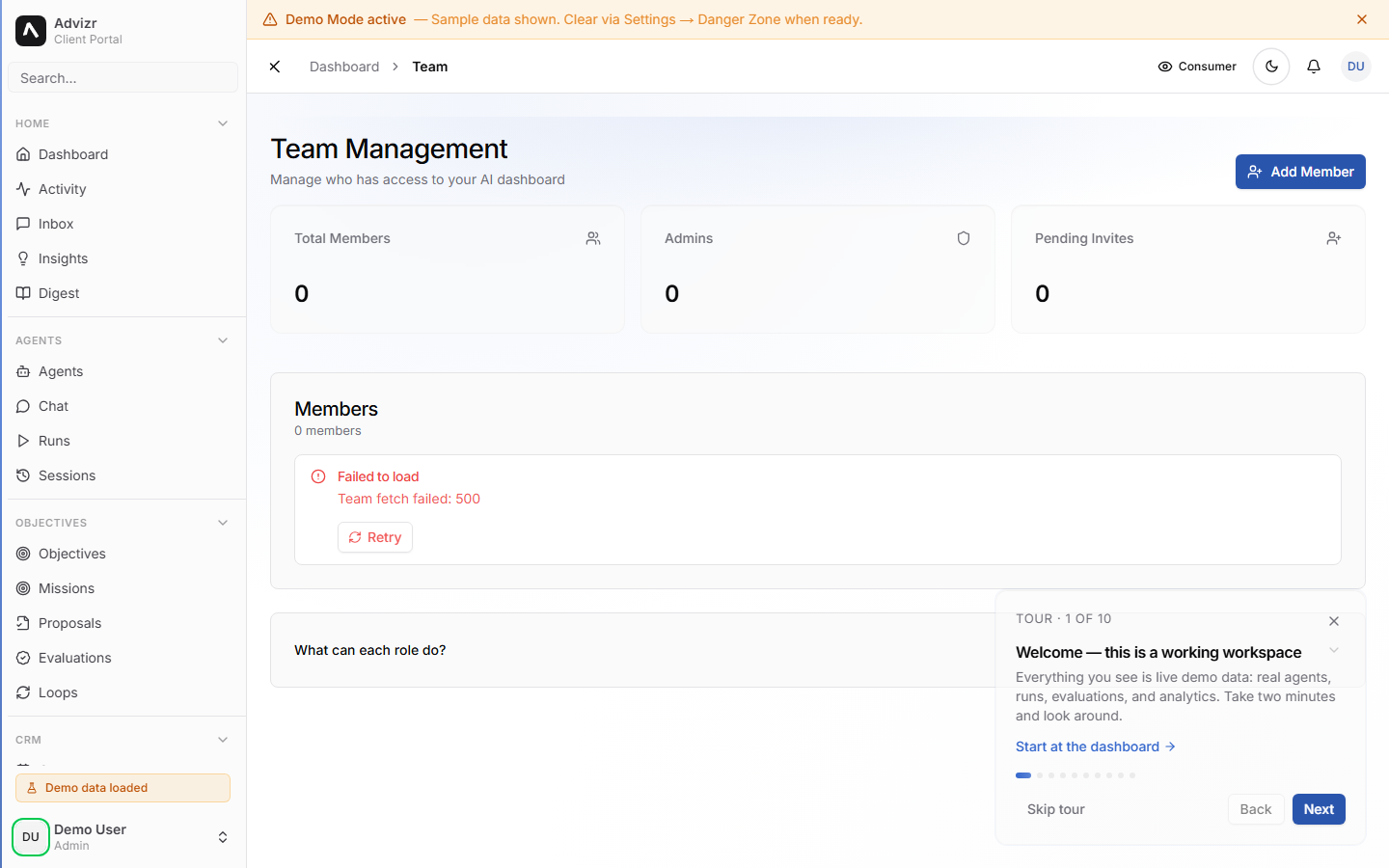
You’ll see a list of current team members with a role badge next to each name.
Locate the person whose role you want to change.
The change takes effect immediately.
You should now see the updated role badge next to the team member’s name. The next time they load the platform, their interface reflects the new role.
If you need your own role changed and you’re not a Client Admin, ask your organization’s Client Admin or contact your FDE.
If something goes wrong#
- You can’t see Team management. Only Client Admins can manage the team. Ask your organization’s Client Admin to make the change, or have them update your role first.
- A role change doesn’t seem to apply. Ask the team member to refresh the page or log out and back in — their interface updates on the next load.
- None of the three client roles fits. Roles are fixed, but your FDE can advise on the closest fit for what the person needs to do. Message them in Interact.
Still stuck? Message your FDE in Interact with your browser, a screenshot, and when it happened.