
Getting Started
This page walks you through your first login to the Advizr platform, what you will see when you land on your dashboard, and how to navigate the interface. If you have just received your invitation email, start here.
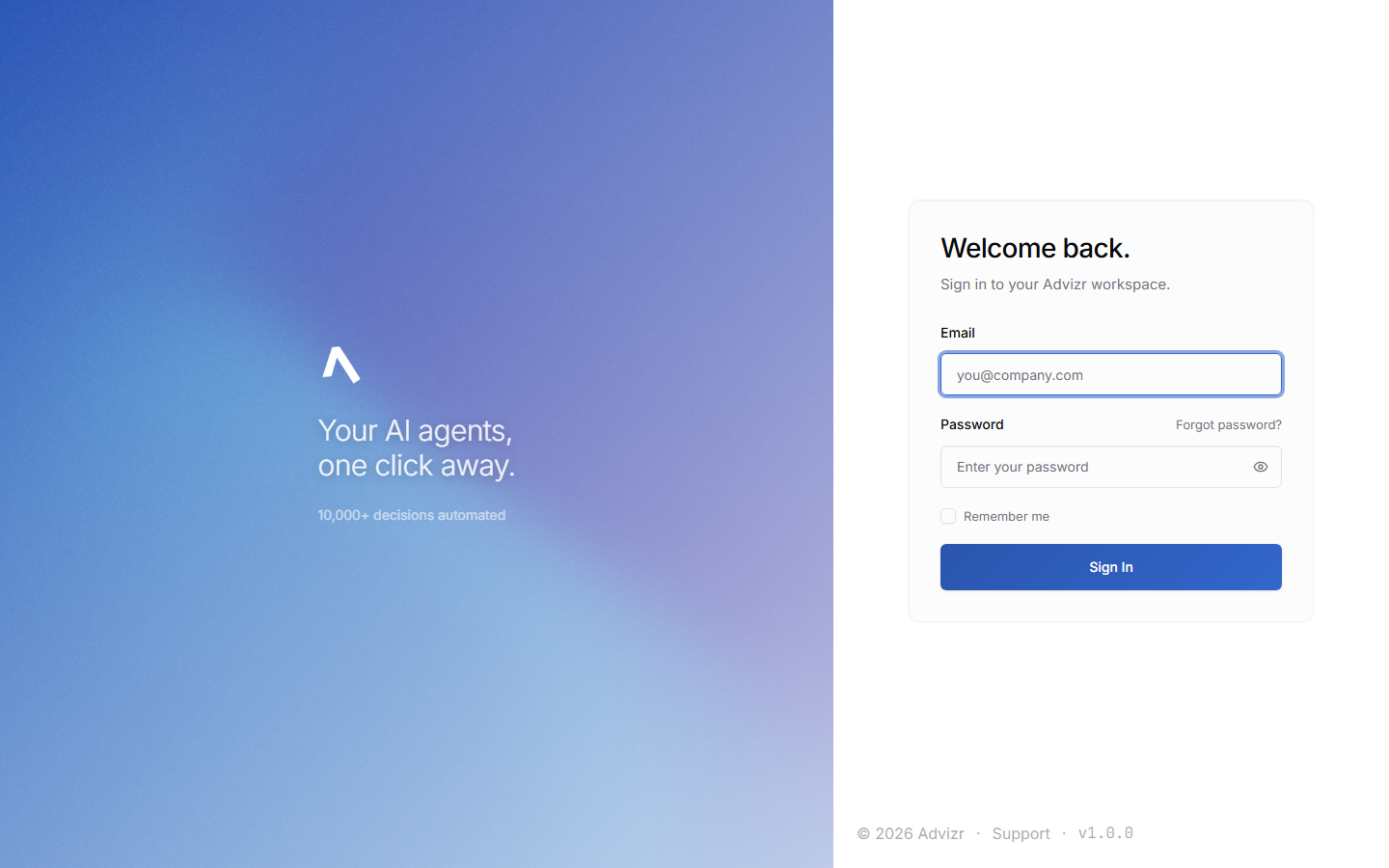
Accepting your invitation#
When your Advizr team sets up your account, you will receive an email with a link to advizrclients.com. Click the link to set your password and activate your account. If you do not see the email, check your spam folder or contact your Advizr team.
Look for an email from Advizr with the subject line “Welcome to Advizr.” Click the activation link inside.
Choose a strong password. You will use this along with your email address to log in going forward.
Visit advizrclients.com and enter your email and password. You will land on your Dashboard.
The left rail groups the workspace into five sections: Today, Engagement, Your team, Value and Learn. Only Today is expanded when you arrive; open the others as you need them. On mobile, tap the menu icon in the top-left corner.
Bookmark advizrclients.com so you can get back to your dashboard quickly. On mobile, add it to your home screen for one-tap access.
Navigating the dashboard#
The rail is your main navigation. It stays visible on desktop and collapses into a menu on mobile. The top bar carries search, your team’s live status, notifications and your account menu.
The five sections group the workspace by what you are trying to do:
Today is the daily loop.
- Dashboard is the front door: what needs your OK, and one box to ask for anything.
- Inbox is where your team asks permission or a question.
- Digest is the weekly written summary.
Engagement is the work itself.
- Goals are the targets everything is planned against.
- Workflows are the repeatable systems, both the ones Advizr built for you and your own.
- Runs is the full record of everything your team has done.
Your team is who does the work.
- Tasks is the shared board for people and AI coworkers.
- Interact is where you ask for work and watch it happen.
- Team is the roster, and Hiring adds to it.
Value answers whether it is working.
Learn is what your team knows and where to read more.
- Brain is every source your team has read.
- Documentation is this site.
Where to go for help#
If you get stuck, ask in Interact for the fastest response. For common questions, see Getting help, or book a call with your FDE to talk it through.
Book Your Onboarding Call