
Start talking to your team
The final step of the onboarding wizard introduces you to Interact, which is where you put your team to work.
It is not a chatbot. A chatbot answers you; your team does things on your behalf, using the sources you added and the goals you set. That difference shows up in the first five minutes.
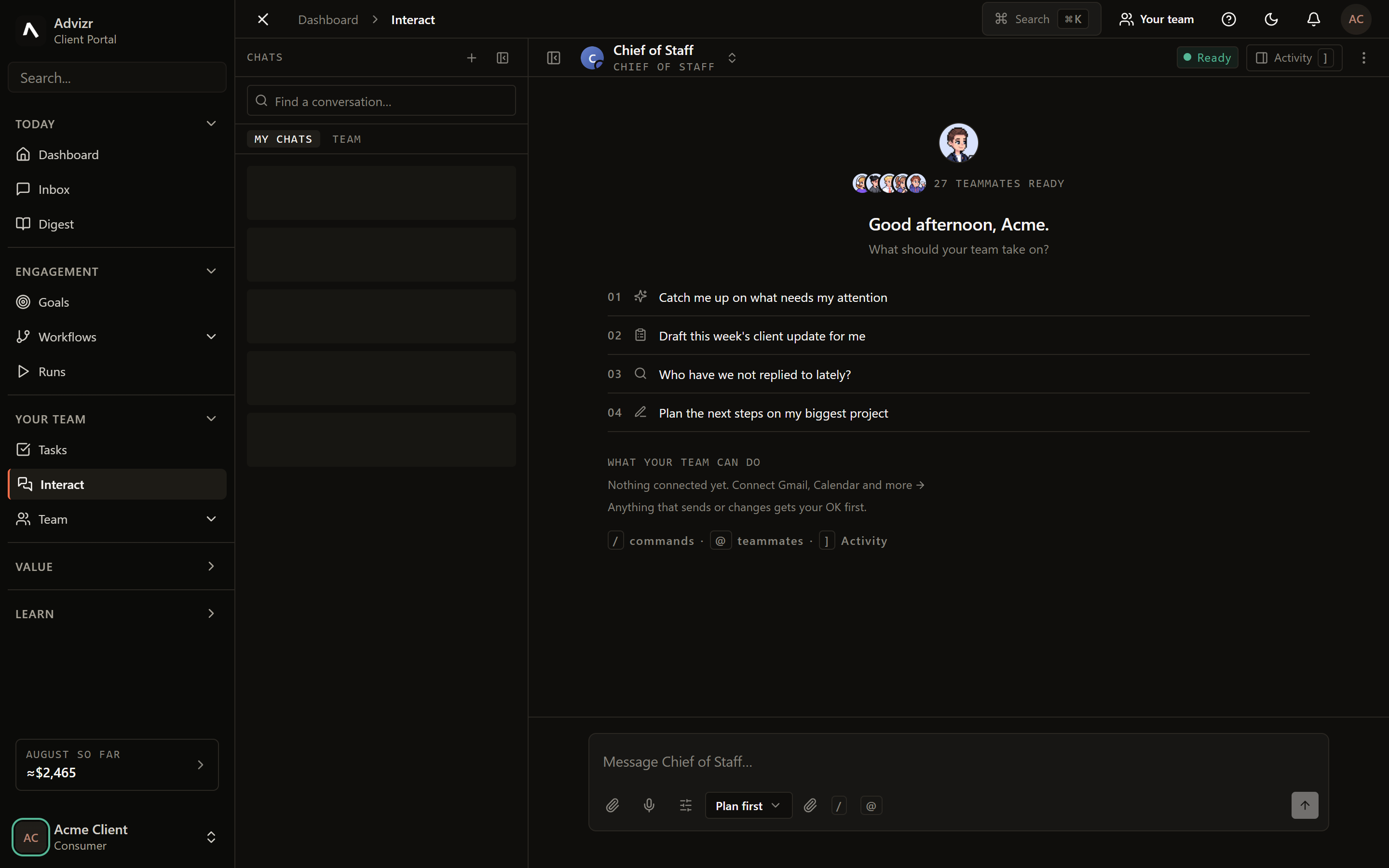
What you can ask for#
Ask for an outcome rather than a step. Some openers worth trying on day one:
- “Summarise the documents I just added and suggest three processes worth automating.”
- “What did we agree with our largest supplier about lead times?”
- “Draft a follow-up to the enquiries that came in this week.”
- “Which of our goals has moved least in the last month, and why?”
The answers get better as your Brain fills up. A question about your invoicing process is answered from your own SOPs rather than generic industry advice, which is exactly why the wizard asks for sources and goals before it introduces this step.
Your first ask#
It is under Your team in the left rail. Existing threads appear alongside; start a new one to begin fresh.
Write it the way you would brief a colleague. You do not need to name tools or steps.
Anything substantial comes back as a plan first. Nothing has run at this point, which makes it the cheapest moment to correct a misunderstanding.
Once approved, the activity pane shows each step as it completes.
When to ask for a call instead#
Use Interact for questions, analysis, status and task requests. Book a call when you need a live conversation: strategy, a complex decision, or anything where back-and-forth beats typing.
If something goes wrong#
- The answer is generic. Your team is short on context. Add the relevant documents in Brain.
- The plan misunderstands the ask. Say so in the same thread. It re-plans rather than retrying the same approach.
- Nothing happens after you approve. Check Inbox; the work may be waiting on a second decision.
Still stuck? Message your FDE in Interact with your browser, a screenshot, and when it happened.