
Book a call with your FDE
The Book a Call section lets you schedule live conversations with your Fractional Digital Engineer (FDE). Whether you need a strategy session, a quick check-in, or hands-on training, you can find a time that works and book it directly from the platform.
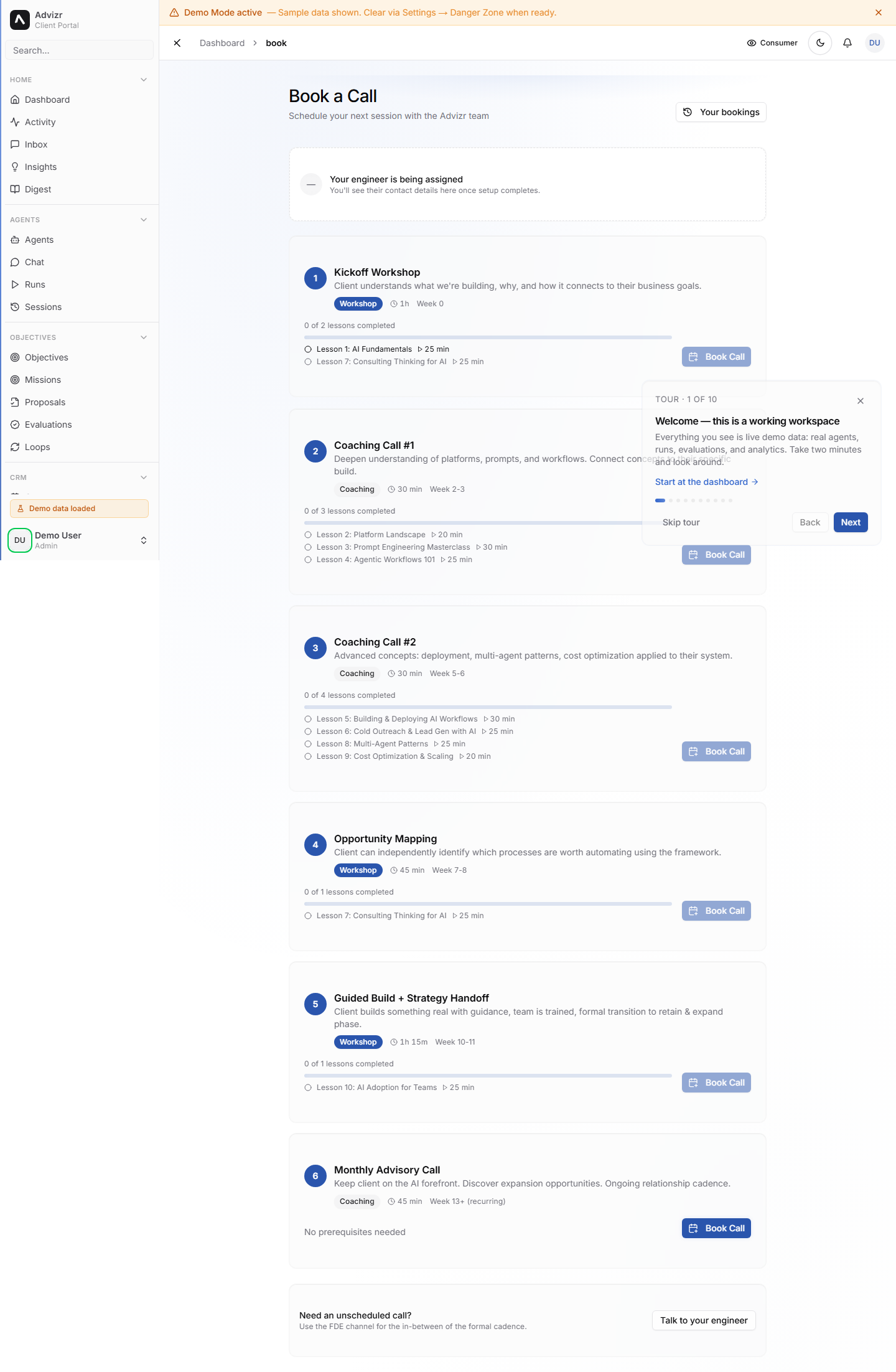
Book a session#
Click Book a Call in the left sidebar. On mobile, tap the menu icon in the top-left corner first.
Choose from the options at the top of the page. If you are not sure which type fits, pick ad-hoc - the session types below explain the differences.
The calendar shows your FDE’s available slots, displayed in your local timezone. Click the one that works for you.
If you want a focused session, add a note about what you want to discuss - it is optional but helpful. Then click Confirm.
You should now see the booking at the top of the Book a Call page, and a calendar invite with a video call link in your email inbox. A reminder email arrives 24 hours before the session.
Choose the right session type#
Your FDE offers several types of meetings depending on what you need:
- Strategy sessions - Deep-dive conversations about your business objectives, priorities, and next steps. Usually 45-60 minutes.
- Check-ins - Regular progress reviews. Your FDE walks you through what has been delivered, what is in progress, and what is coming next. Usually 20-30 minutes.
- Training - Hands-on walkthroughs of new workflows, tools, or platform features. Your FDE shows you how things work and answers questions in real time.
- Ad-hoc - Anything that does not fit the other categories. Got a quick question or need to discuss something specific? Book an ad-hoc session.
Who your FDE is and why you book with them directly
Your FDE is the Advizr team member assigned to your engagement. They know your business context, your objectives, and what has been built so far - so a call with them starts from where you are, not from scratch. That is why booking goes straight to your FDE’s calendar rather than a general support queue: no triage, no re-explaining your setup to someone new.
Reschedule or cancel#
If you can no longer make a session, open Book a Call and find your upcoming booking. Click Reschedule to pick a new time, or Cancel to free up the slot. Try to give at least 24 hours notice when cancelling.
Your upcoming sessions#
The Book a Call page shows your next scheduled session at the top, including the date, time, session type, and your FDE’s name. Past sessions are listed below for reference.
Book a CallIf something goes wrong#
- No available slot works for you. Message your FDE in Interact with a few times that suit you - they can open up a slot outside the standard calendar.
- The calendar invite never arrived. Check your spam folder and confirm the email address on your profile is correct. Your booking still exists - the time is shown at the top of the Book a Call page.
- The video link does not work at call time. Reply to the calendar invite or message your FDE in Interact - they will send a fresh link.
- You need to cancel with less than 24 hours notice. Cancel the booking anyway so the slot is freed, then drop your FDE a quick message in Interact.
Still stuck? Message your FDE in Interact with your browser, a screenshot, and when it happened.